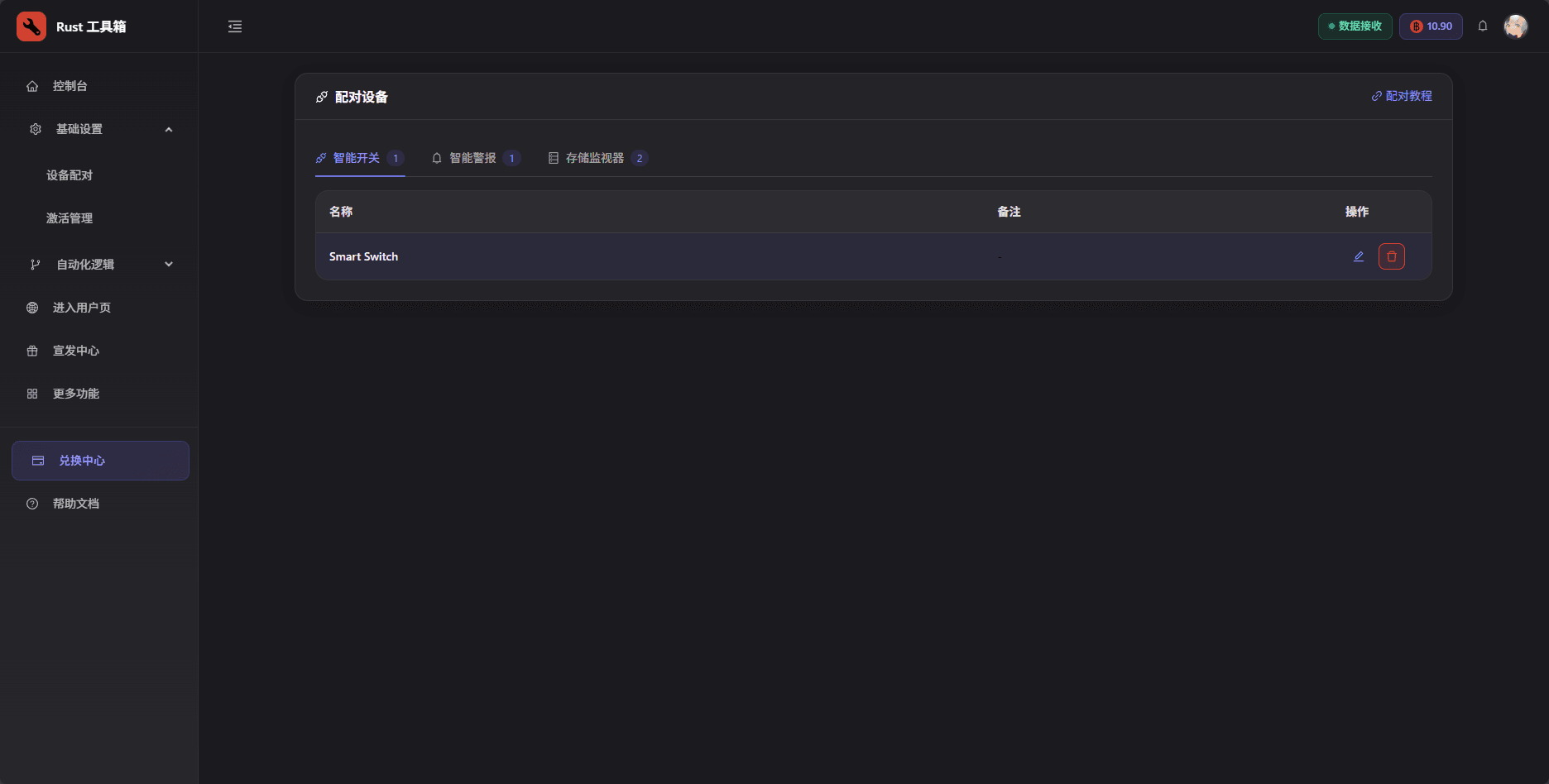
Pair devices
This guide shows you how to pair three kinds of devices:
- Smart Switch
- Smart Alarm
- Storage Monitor
Even though there are “only” three devices, Rust Toolbox provides rich logic conditions—if you can imagine it, you can probably build it.
You must hold a Wire Tool for all pairing actions.
Smart Switch
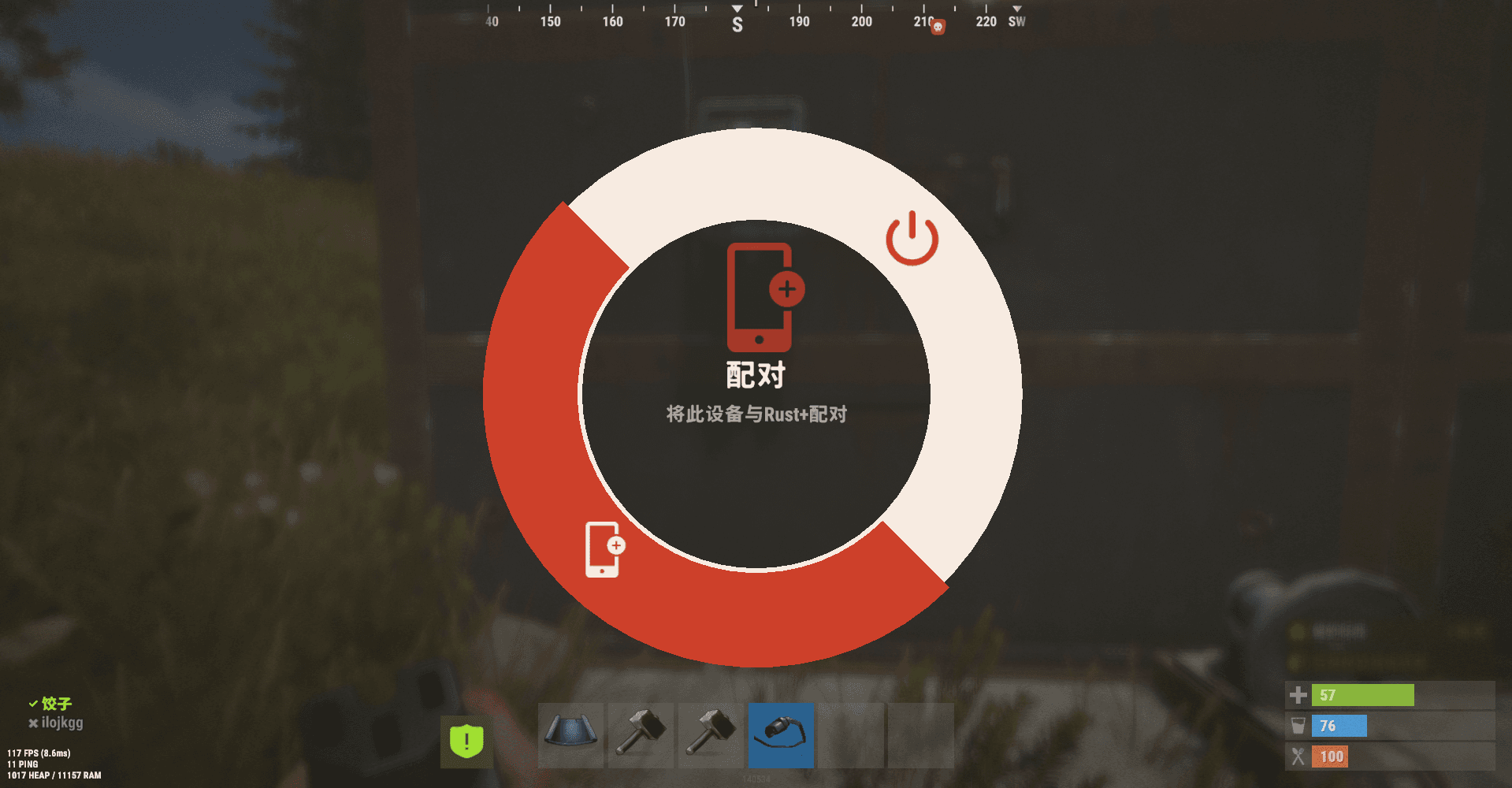
Look at the Smart Switch, hold E, move your cursor to Pair, then left-click.
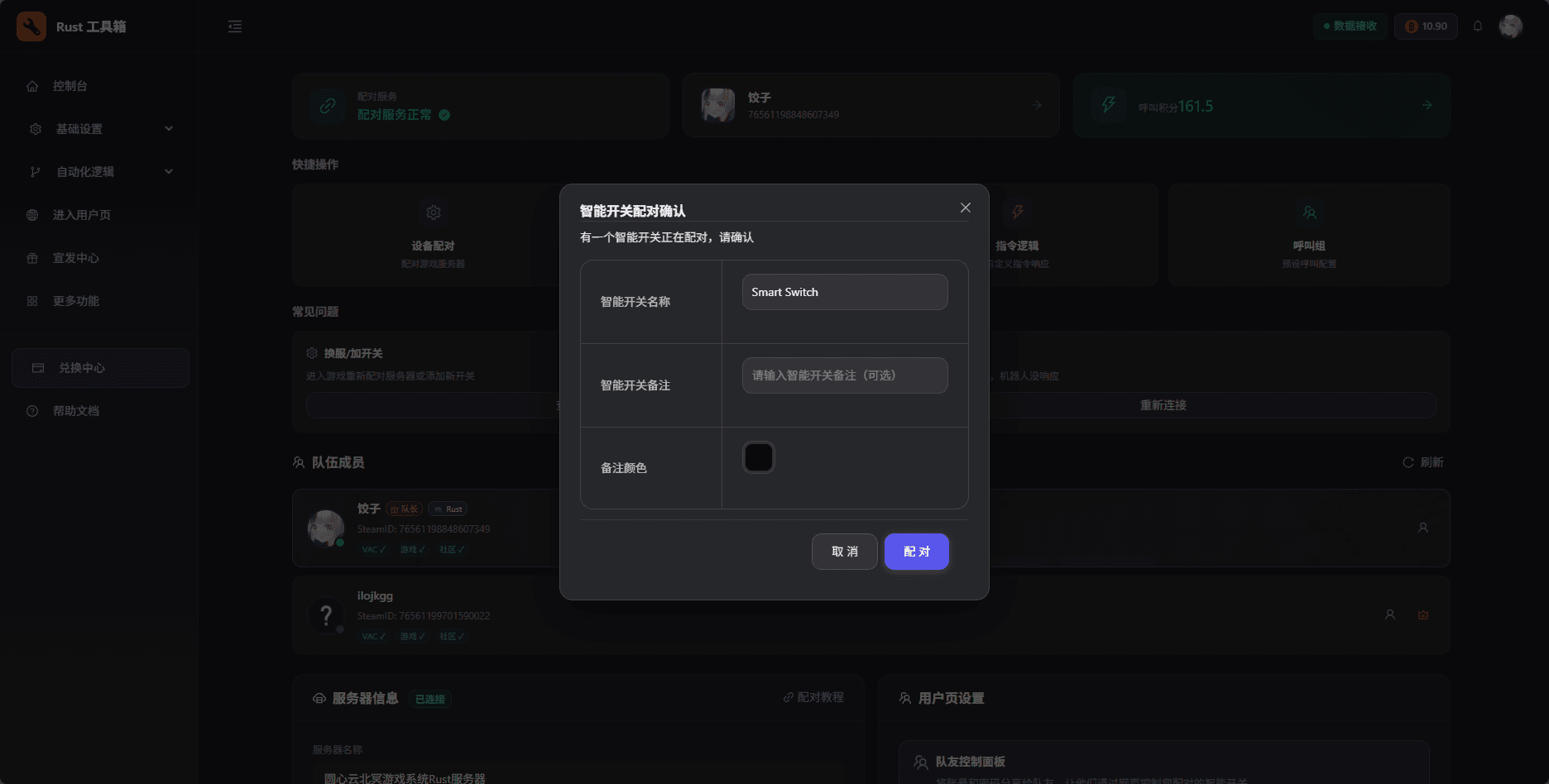
After clicking, open the Rust Toolbox dashboard. You’ll see a pairing confirmation pop-up. Give the switch a memorable name and confirm.
Smart Alarm
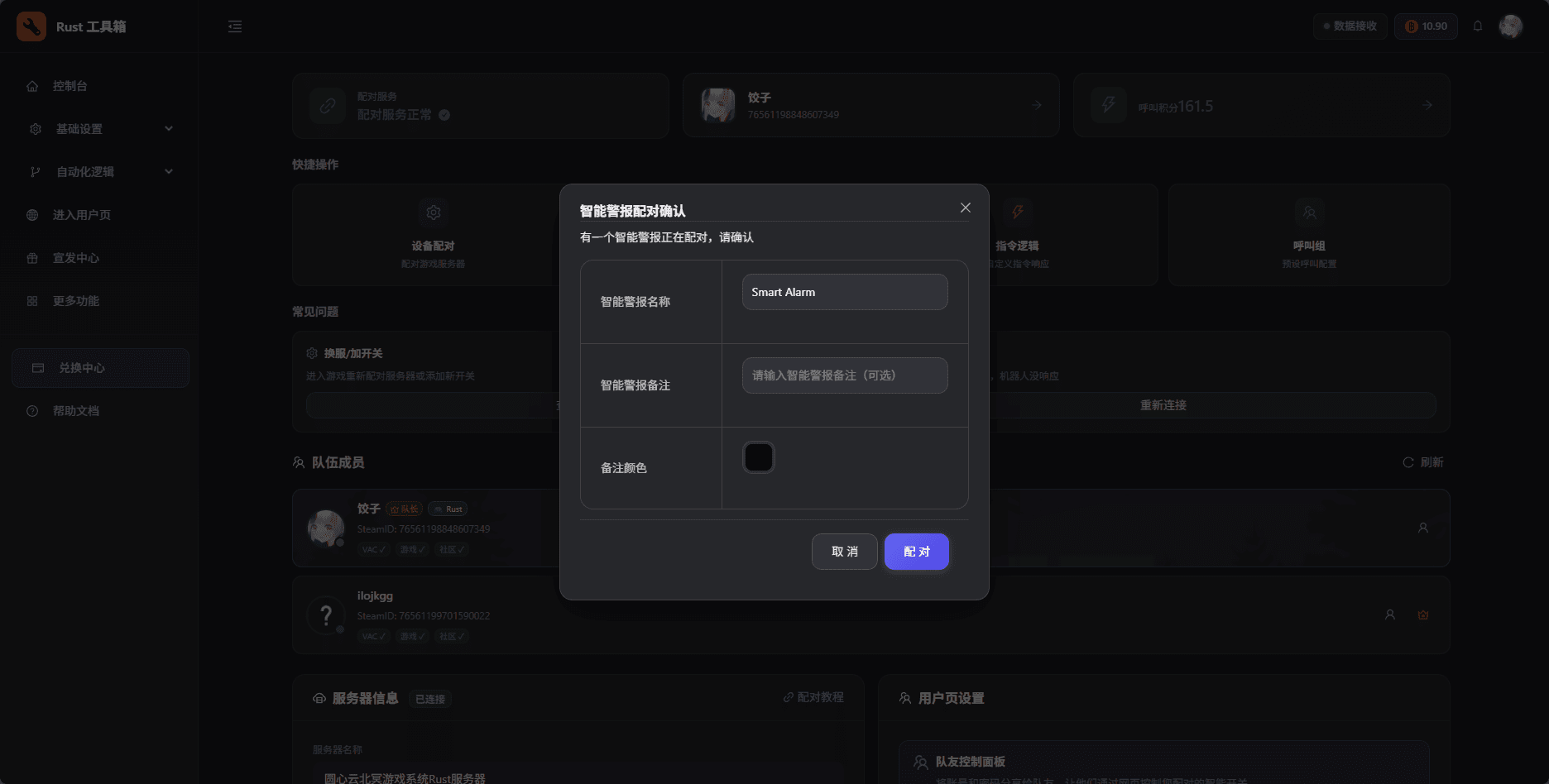
Look at the Smart Alarm, hold E, move your cursor to Pair, then left-click.
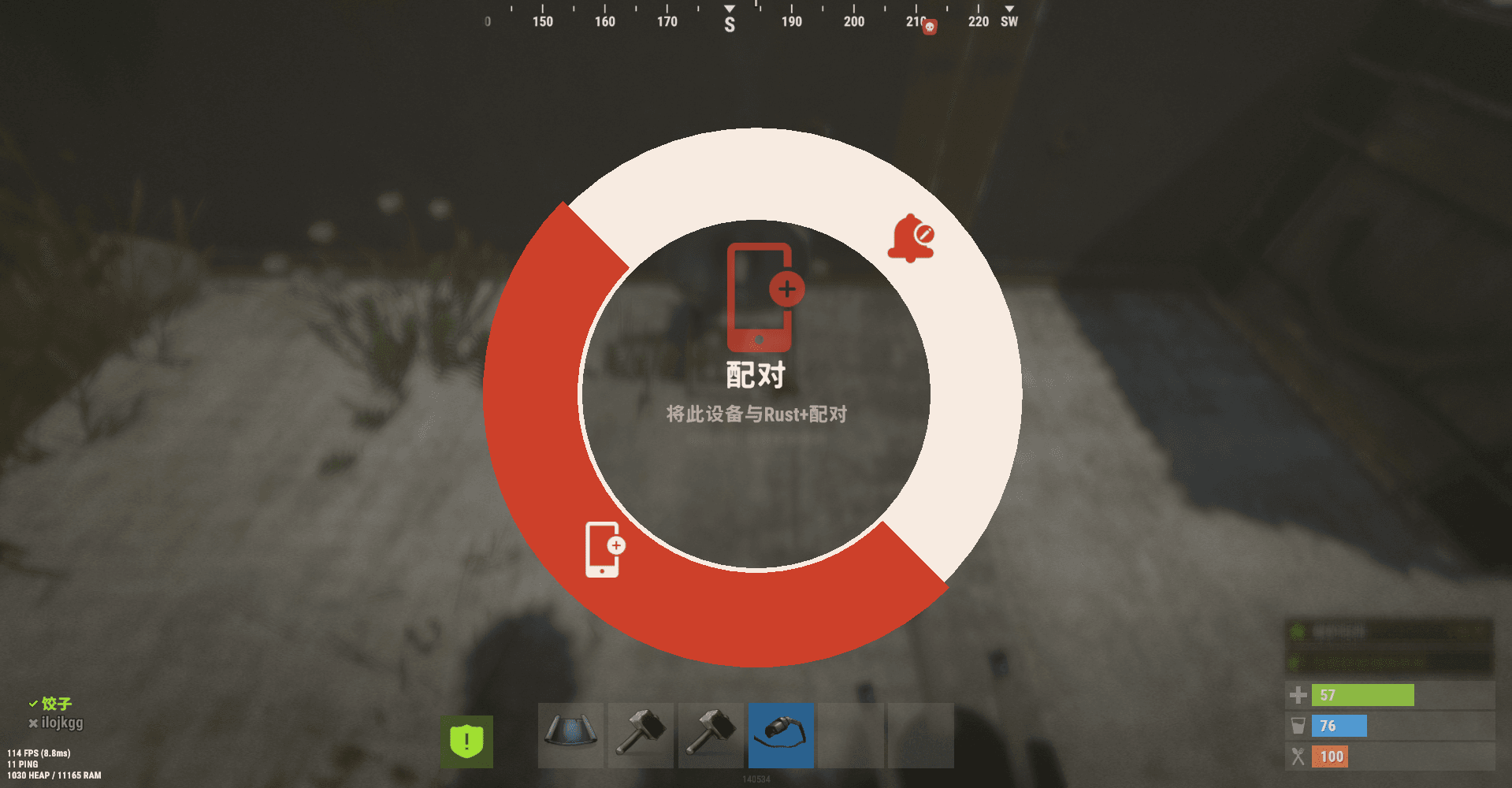
Similarly, the dashboard will show a confirmation pop-up. Name the alarm and confirm.
Alarms are mainly used as triggers for automation logic. You can’t actively toggle their state like a switch.
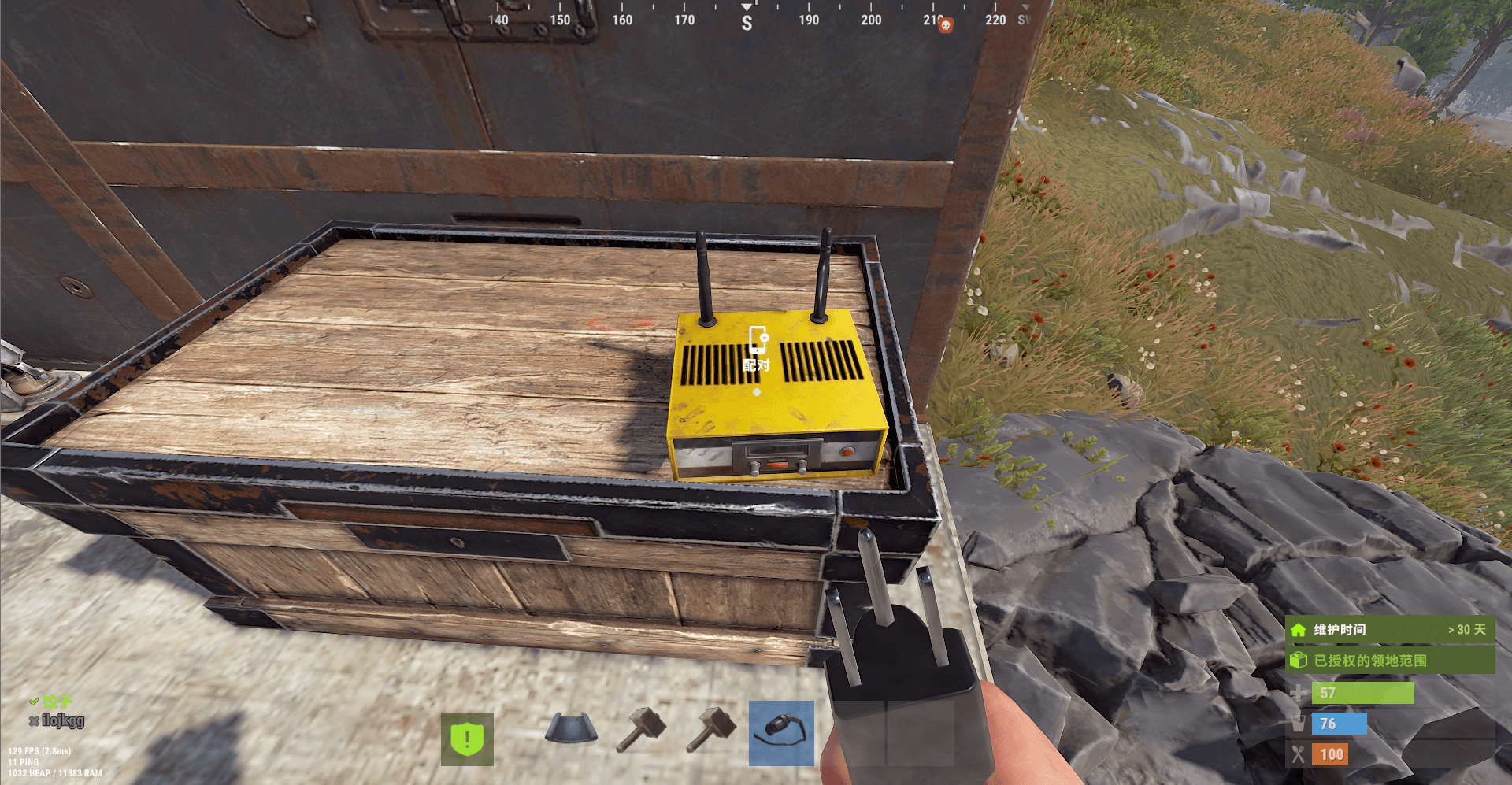
Storage Monitor
This one is special: just look at it and press E (no need to hold).
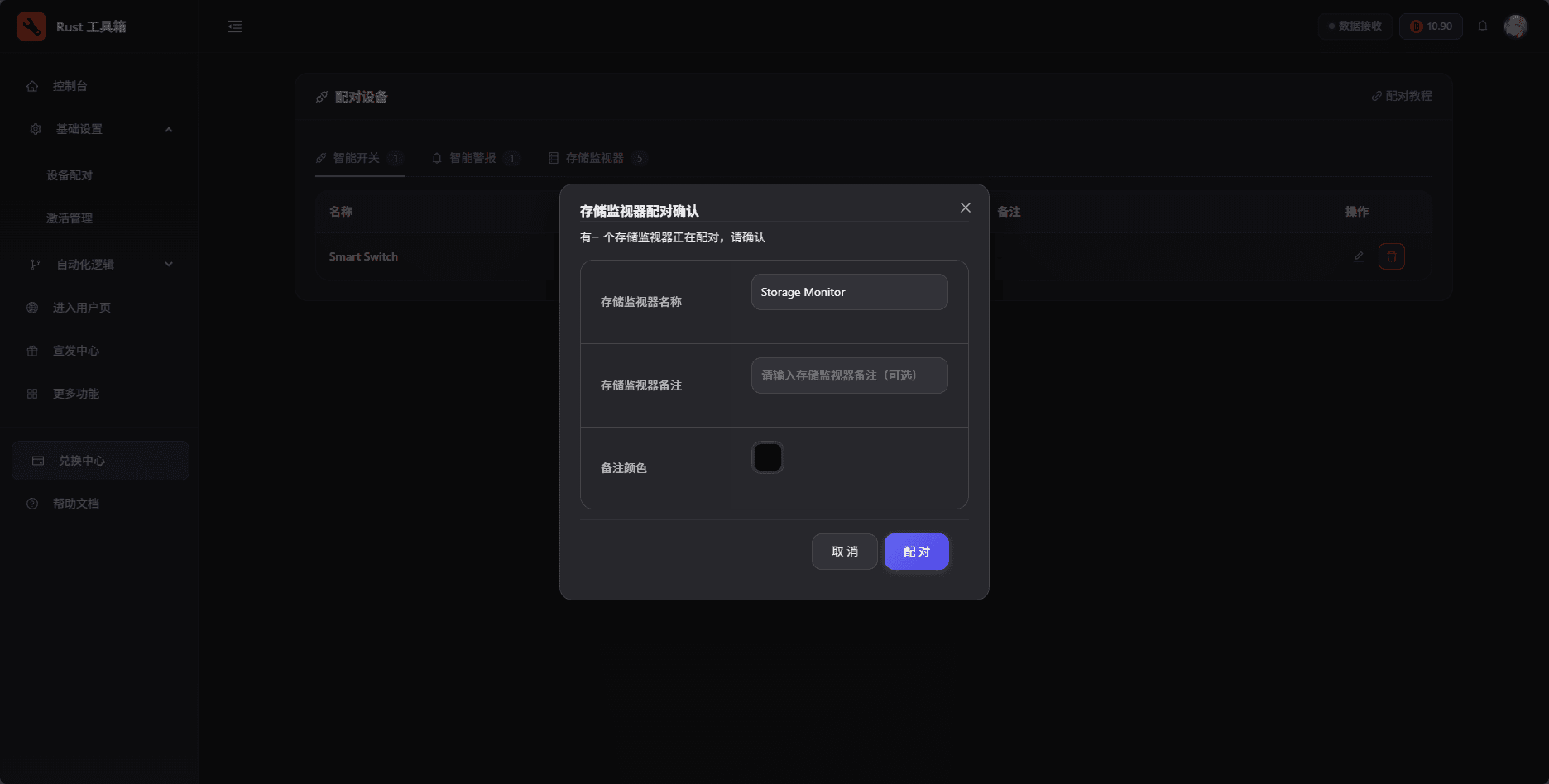
Confirm the pairing in Rust Toolbox.
After pairing
Once you’ve paired everything, you can go to the user page to see the results.
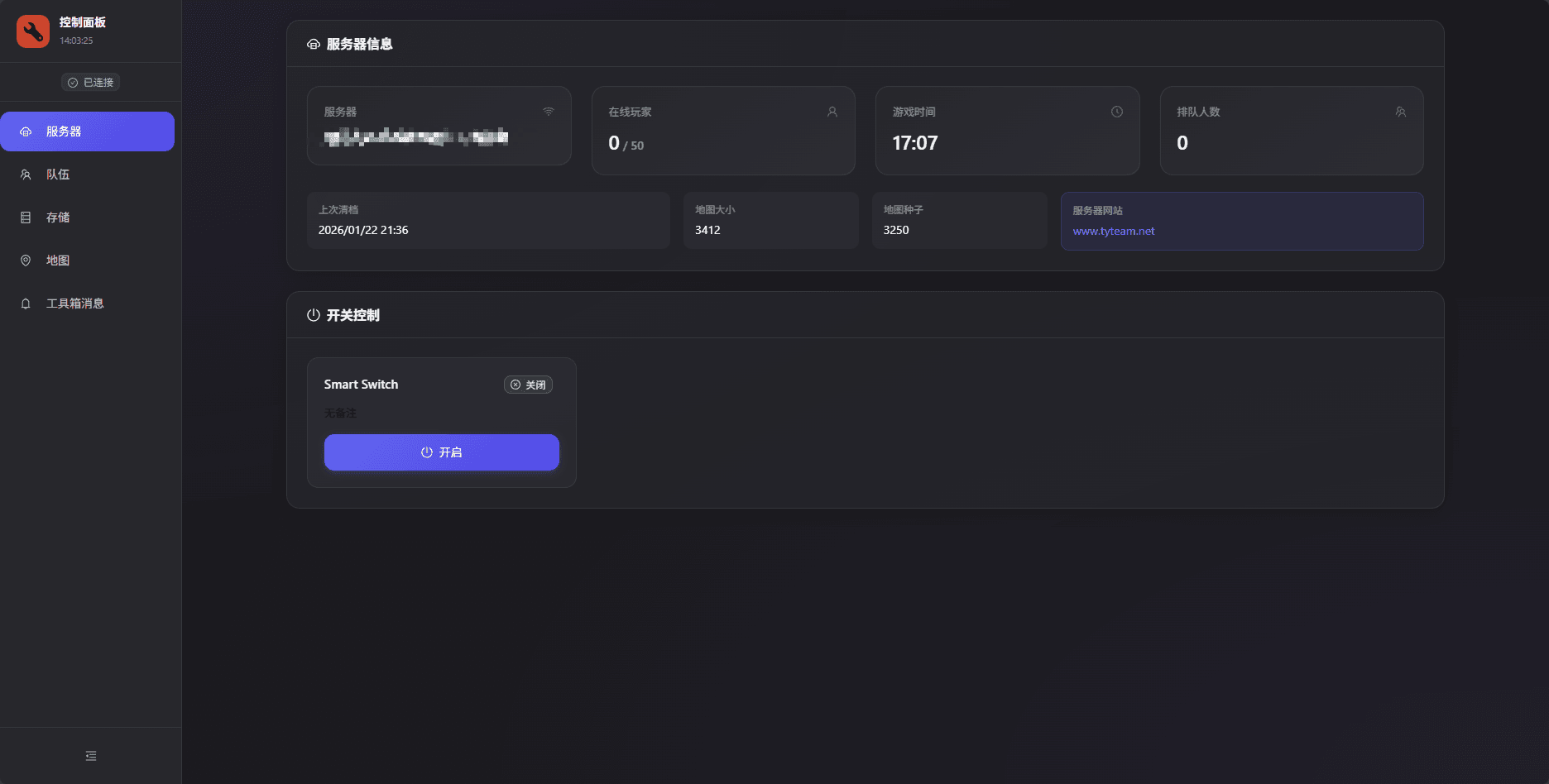
Control Smart Switches
You can click switches on the user page to toggle them, or create logic to automate them.
View Storage Monitors
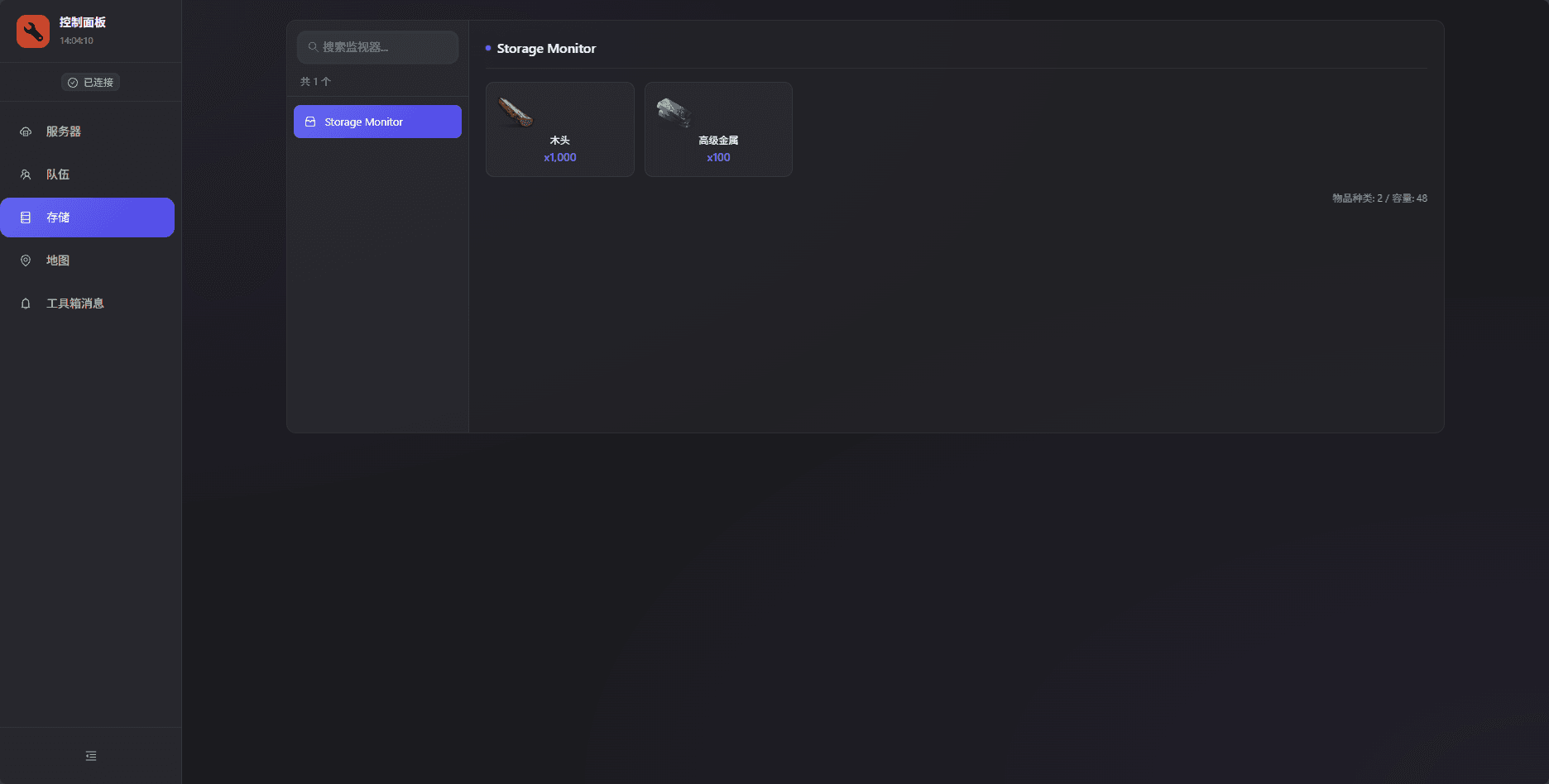
Here is the Storage Monitor you just paired. It can show what’s inside a box.
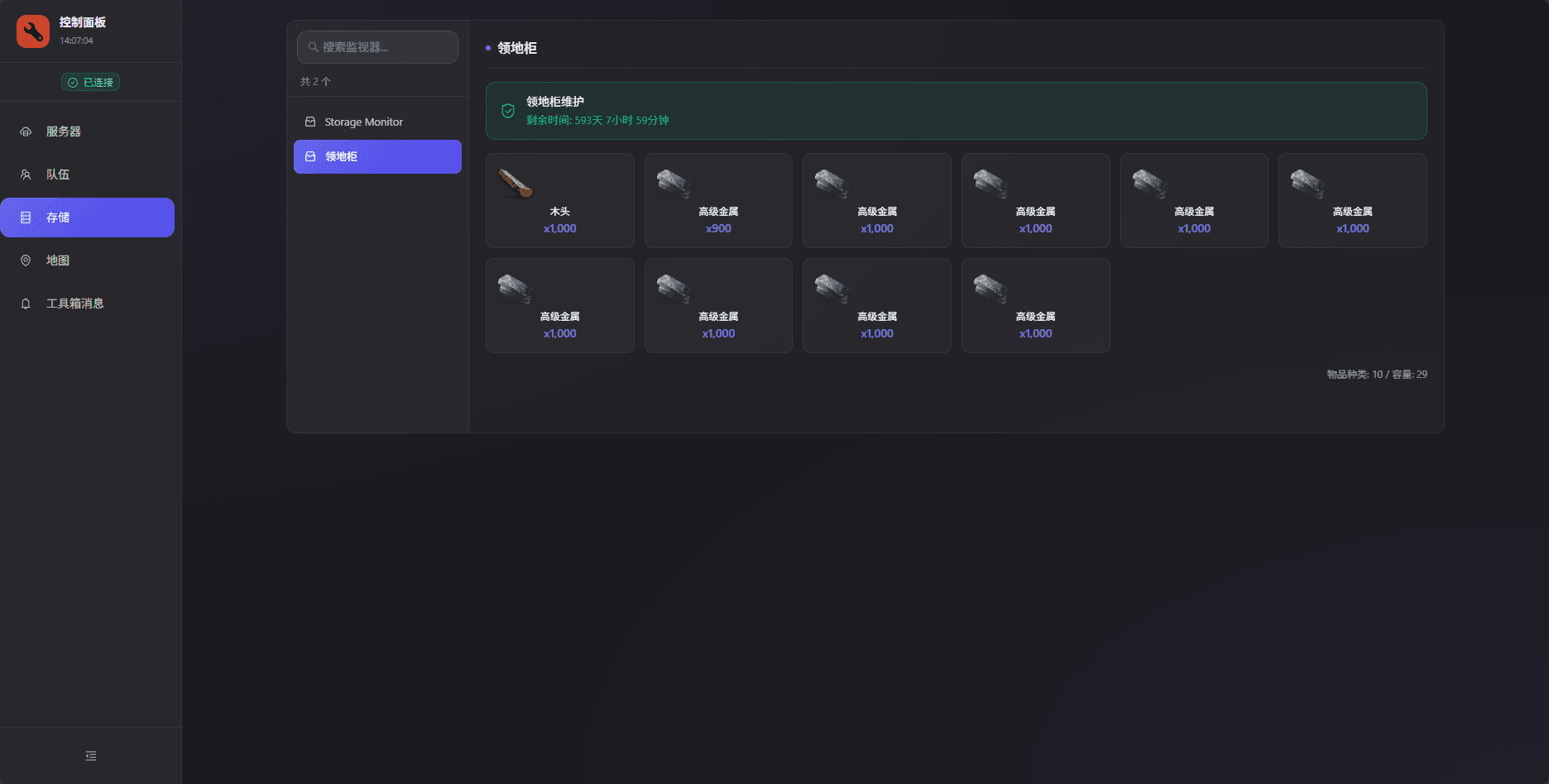
You can also place the Storage Monitor on top of a Tool Cupboard; it will look like this:
View all paired devices
You can find the full list under Dashboard → Basic Settings → Device Pairing. From there you can delete devices, rename them, and more.