Camera Pairing
This guide explains how to pair cameras. Since camera devices have several different types, they are covered in a separate guide.
Rust Toolbox supports four camera-related device types:
- CCTV camera
- PTZ camera
- Drone
- Auto turret
Although there are only four device types here, the event logic system gives you many ways to combine conditions and actions.
All pairing operations require you to hold the wiring tool in game.
CCTV Camera
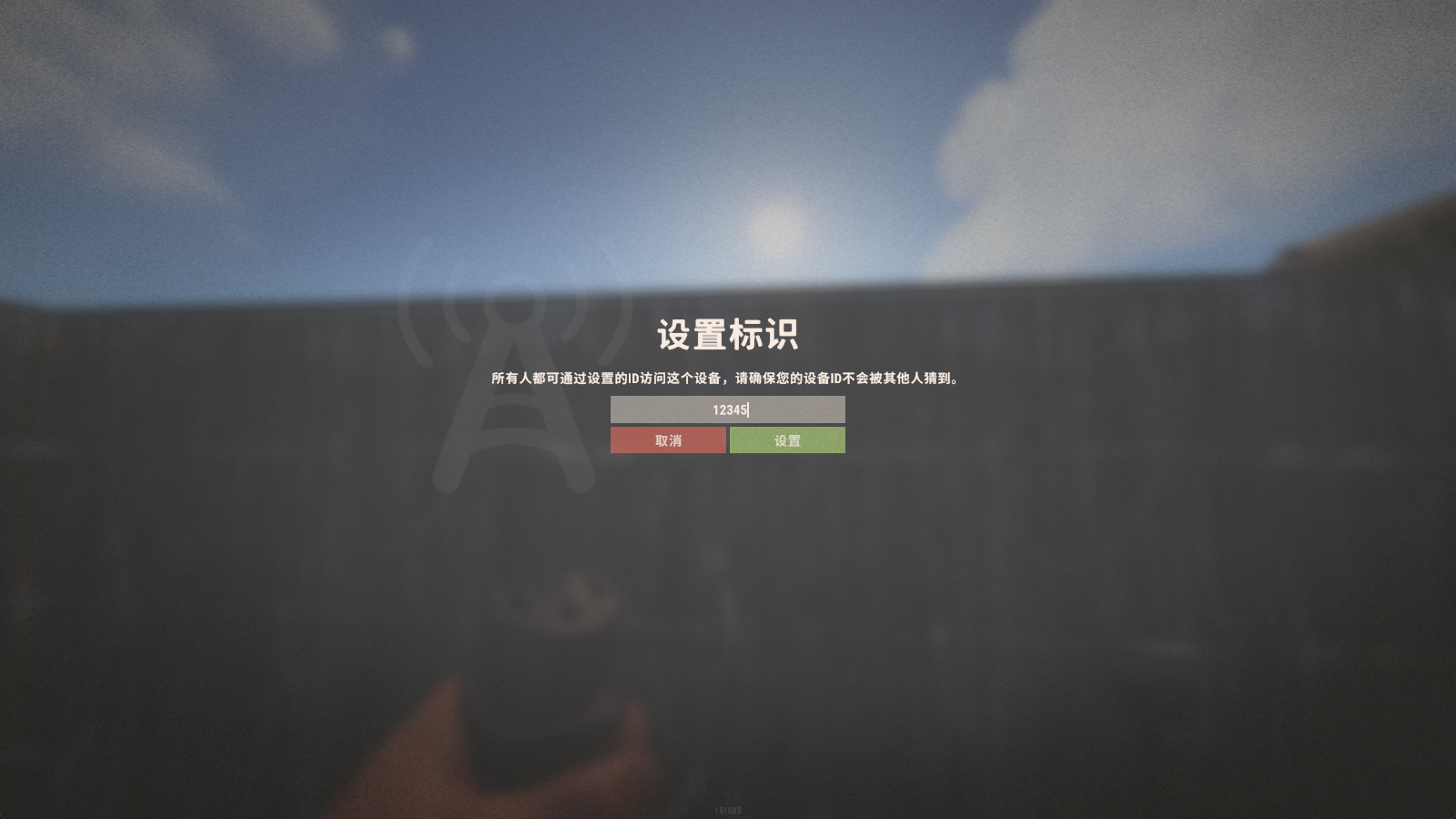
Aim at the CCTV camera, press E, enter an ID, and confirm.
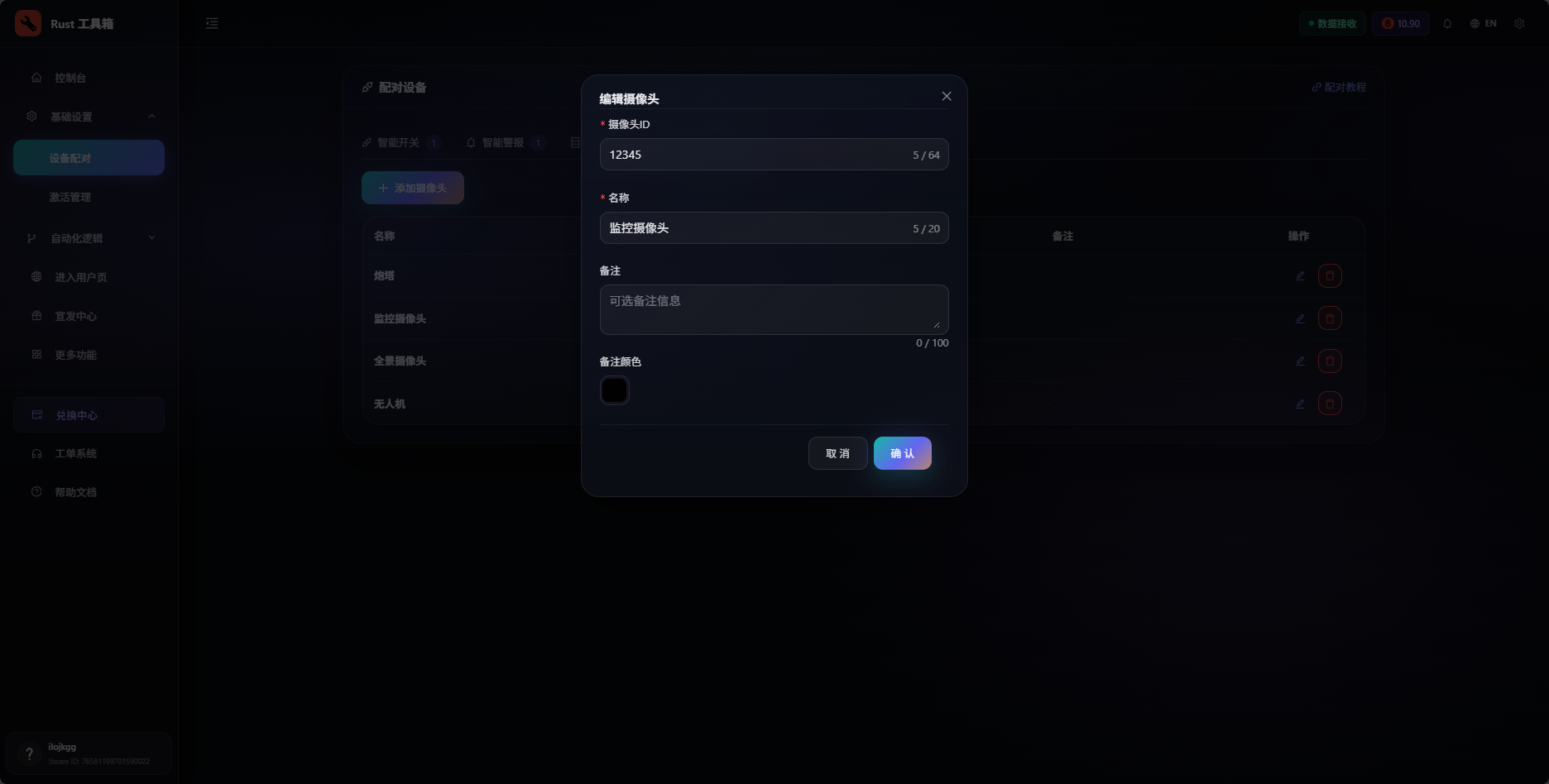
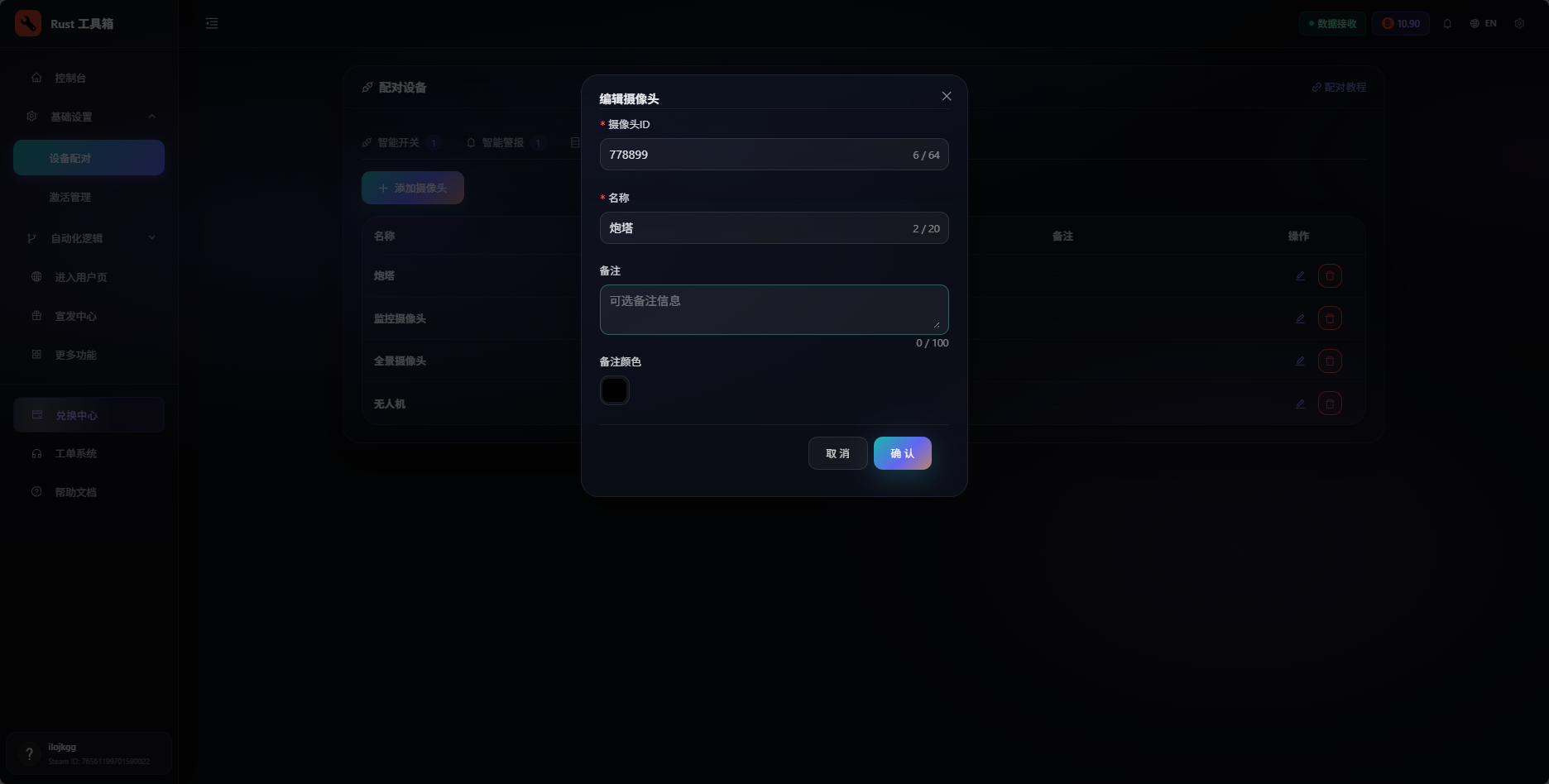
Then open the toolbox admin page and go to Basic Settings -> Device Pairing -> Cameras -> Add Camera. Enter the ID to finish adding the camera.
PTZ Camera
Aim at the PTZ camera, press E, enter an ID, and confirm.
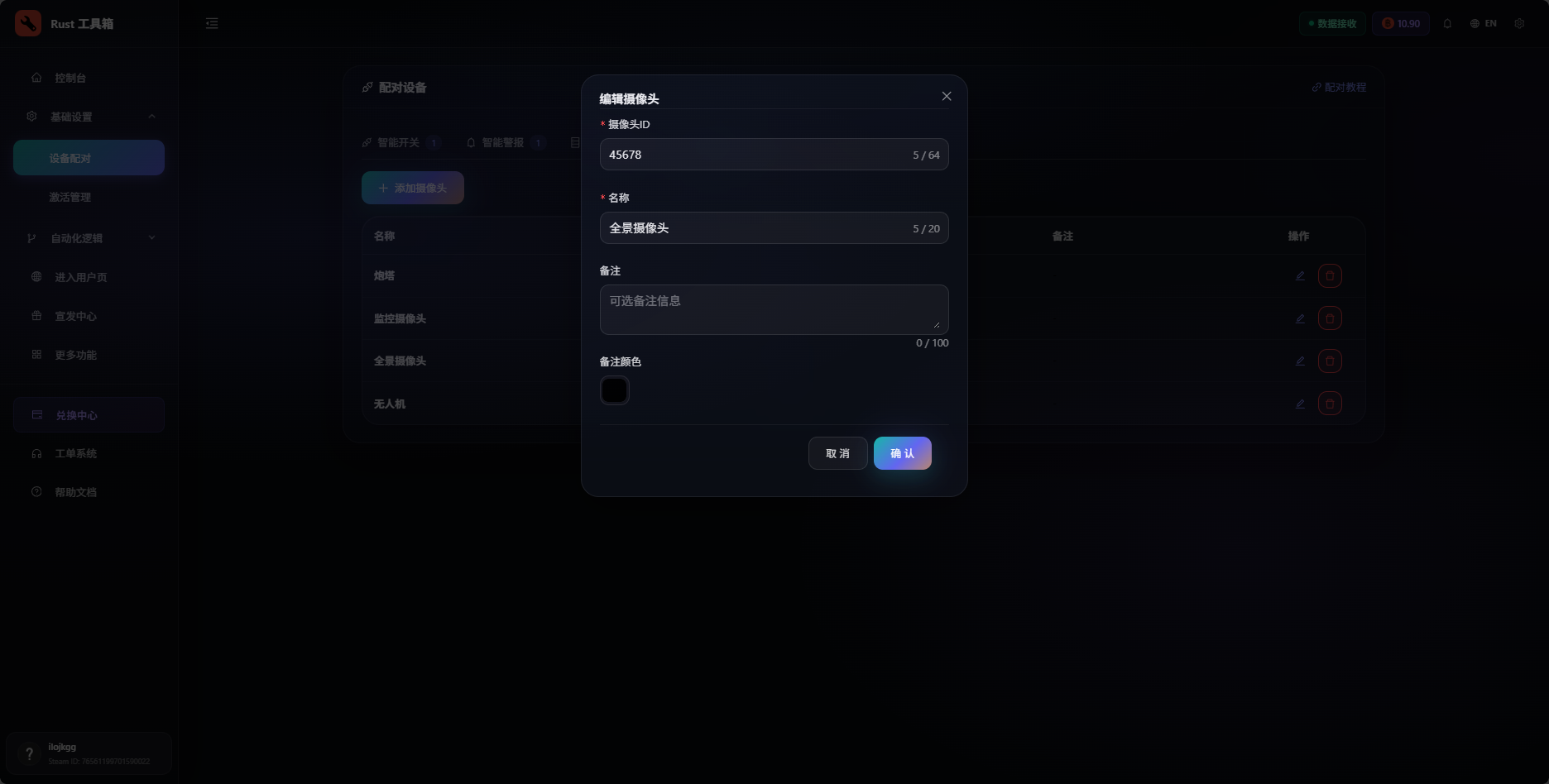
Then open the toolbox admin page and go to Basic Settings -> Device Pairing -> Cameras -> Add Camera. Enter the ID to finish adding the camera.
Drone
Aim at the drone, press E, enter an ID, and confirm.
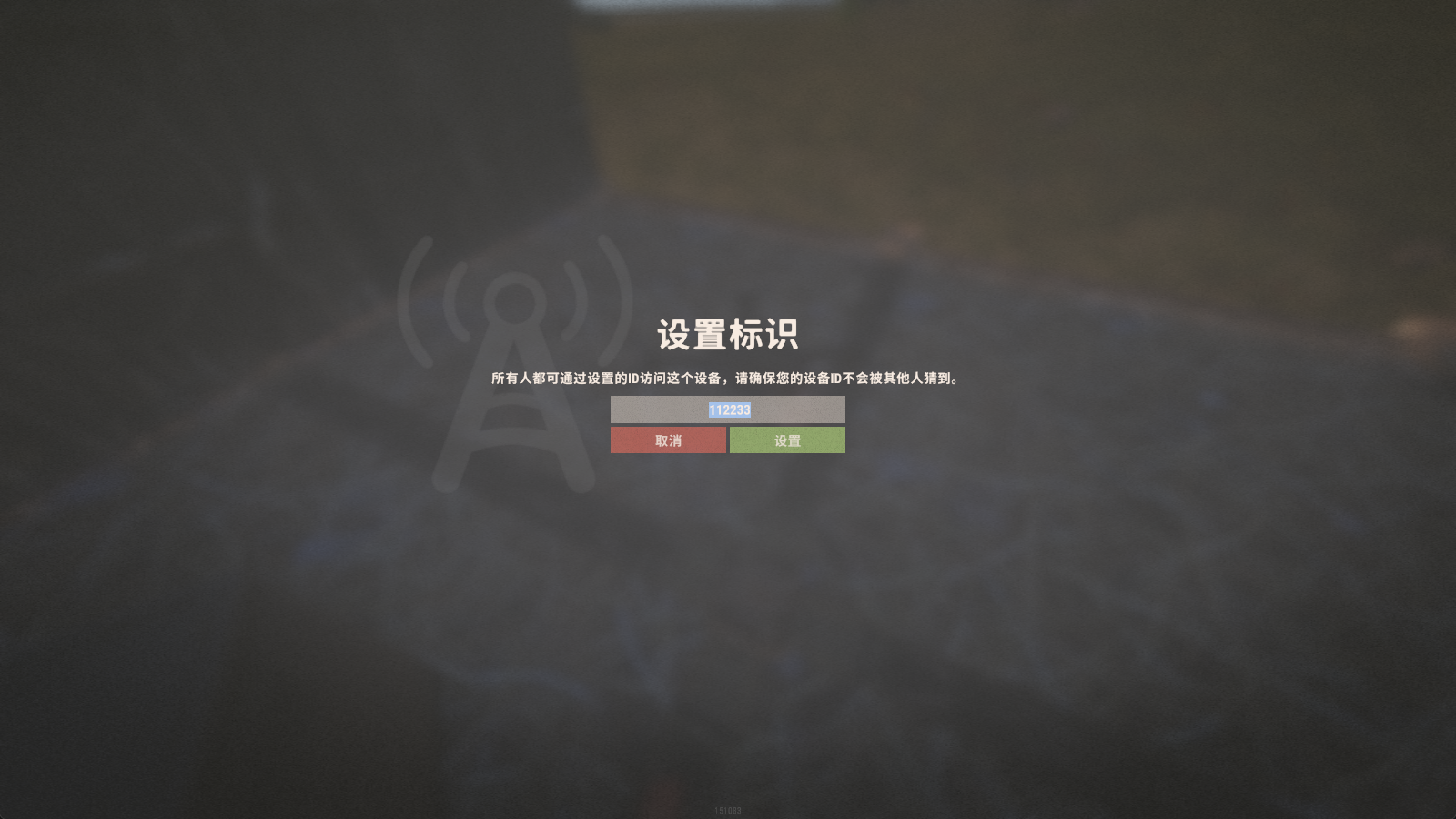
Then open the toolbox admin page and go to Basic Settings -> Device Pairing -> Cameras -> Add Camera. Enter the ID to finish adding the camera.
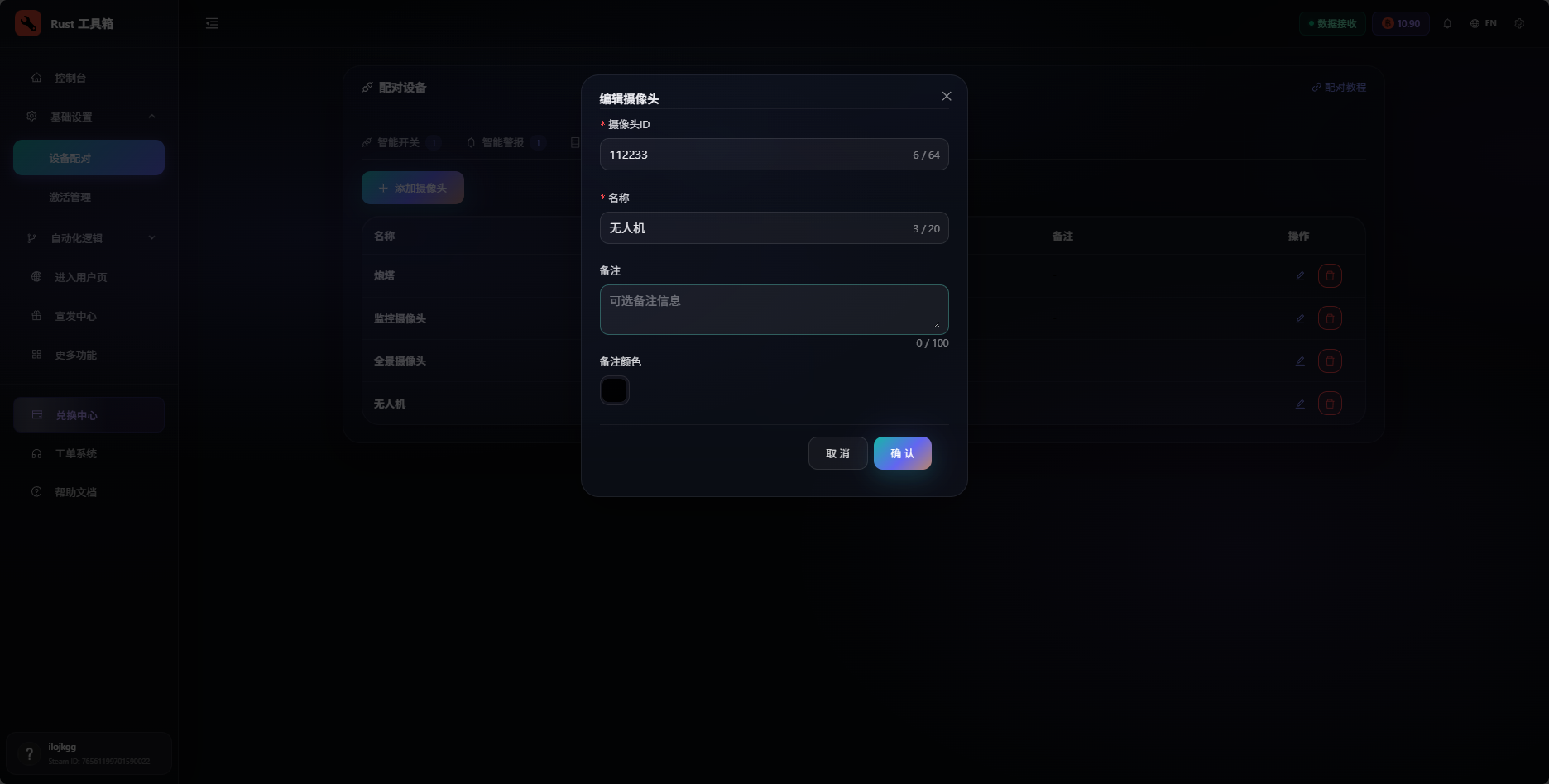
Auto Turret
This device is a little different. While the auto turret is unpowered, aim at it, hold E, and choose the option to set an ID.
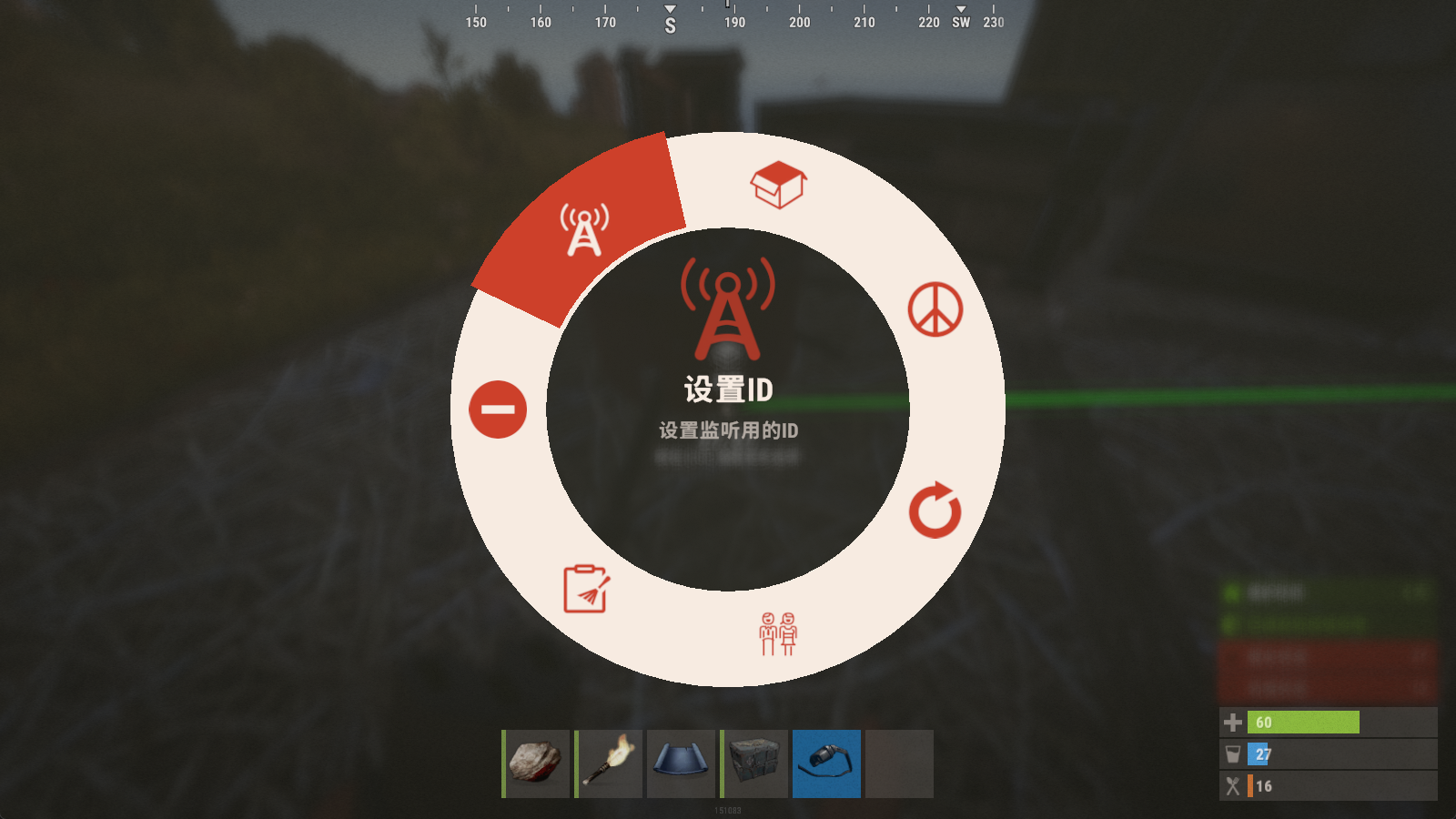
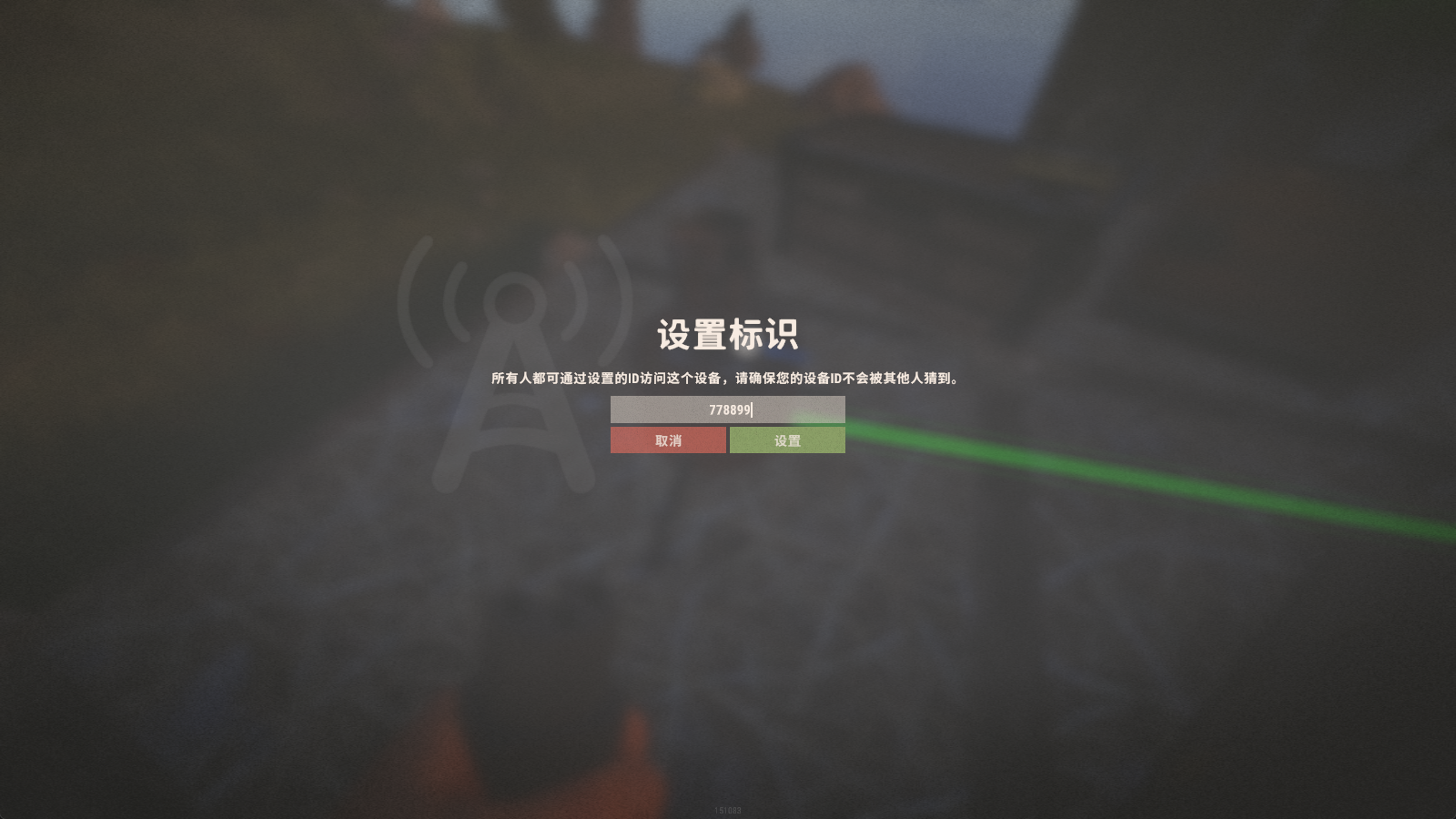
Then open the toolbox admin page and go to Basic Settings -> Device Pairing -> Cameras -> Add Camera. Enter the ID to finish adding the turret camera.
Remote Camera Access
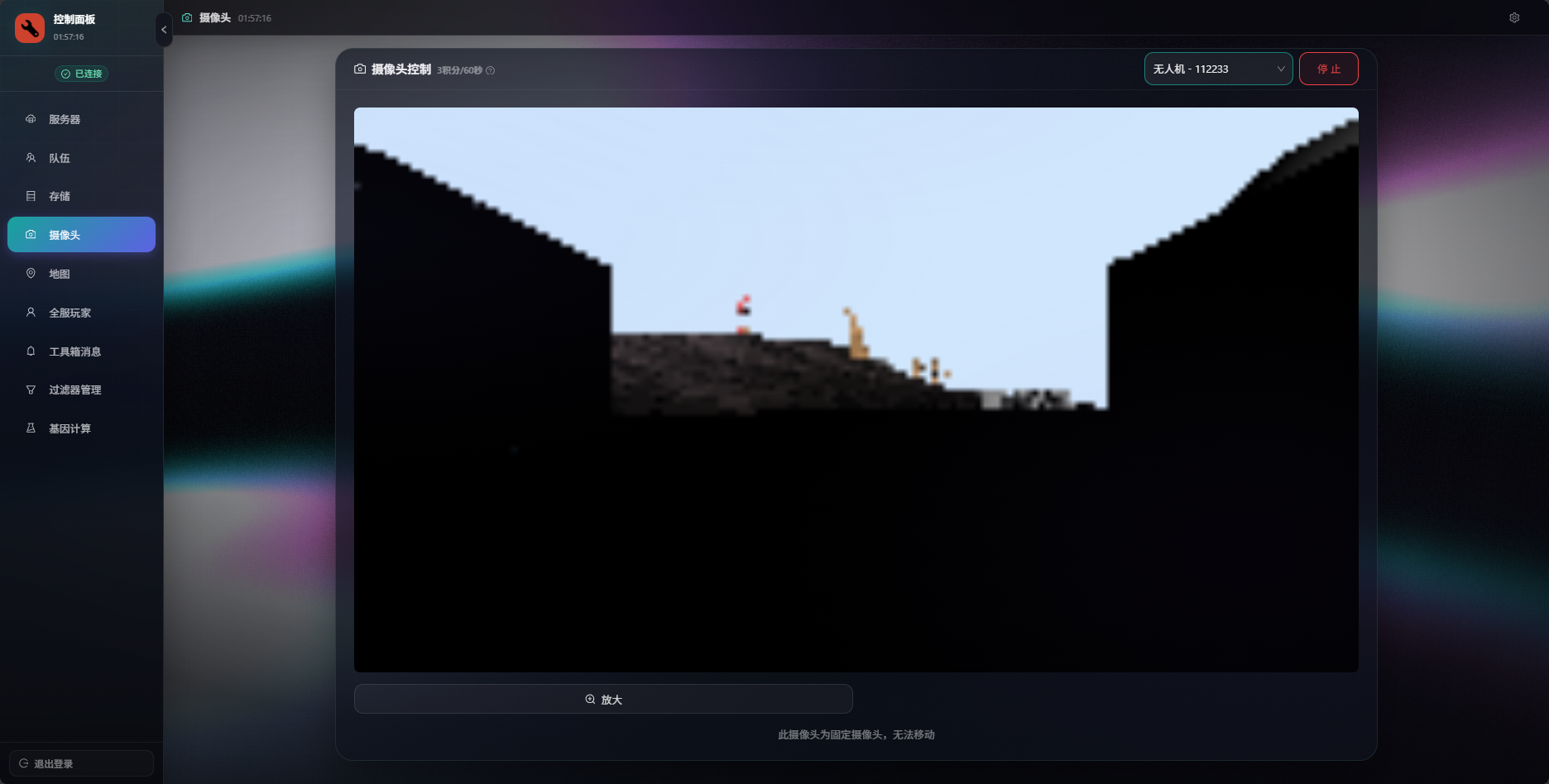
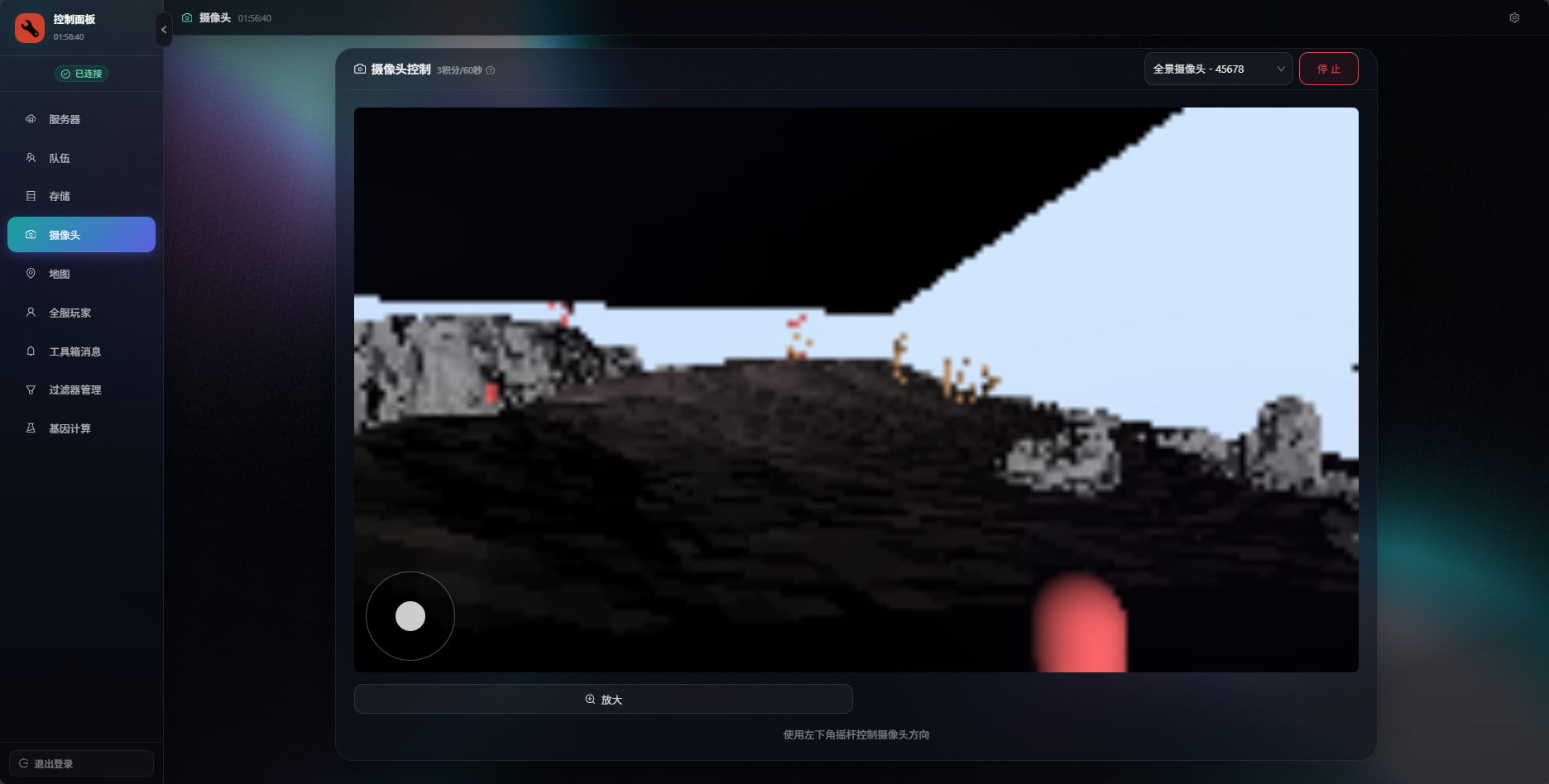
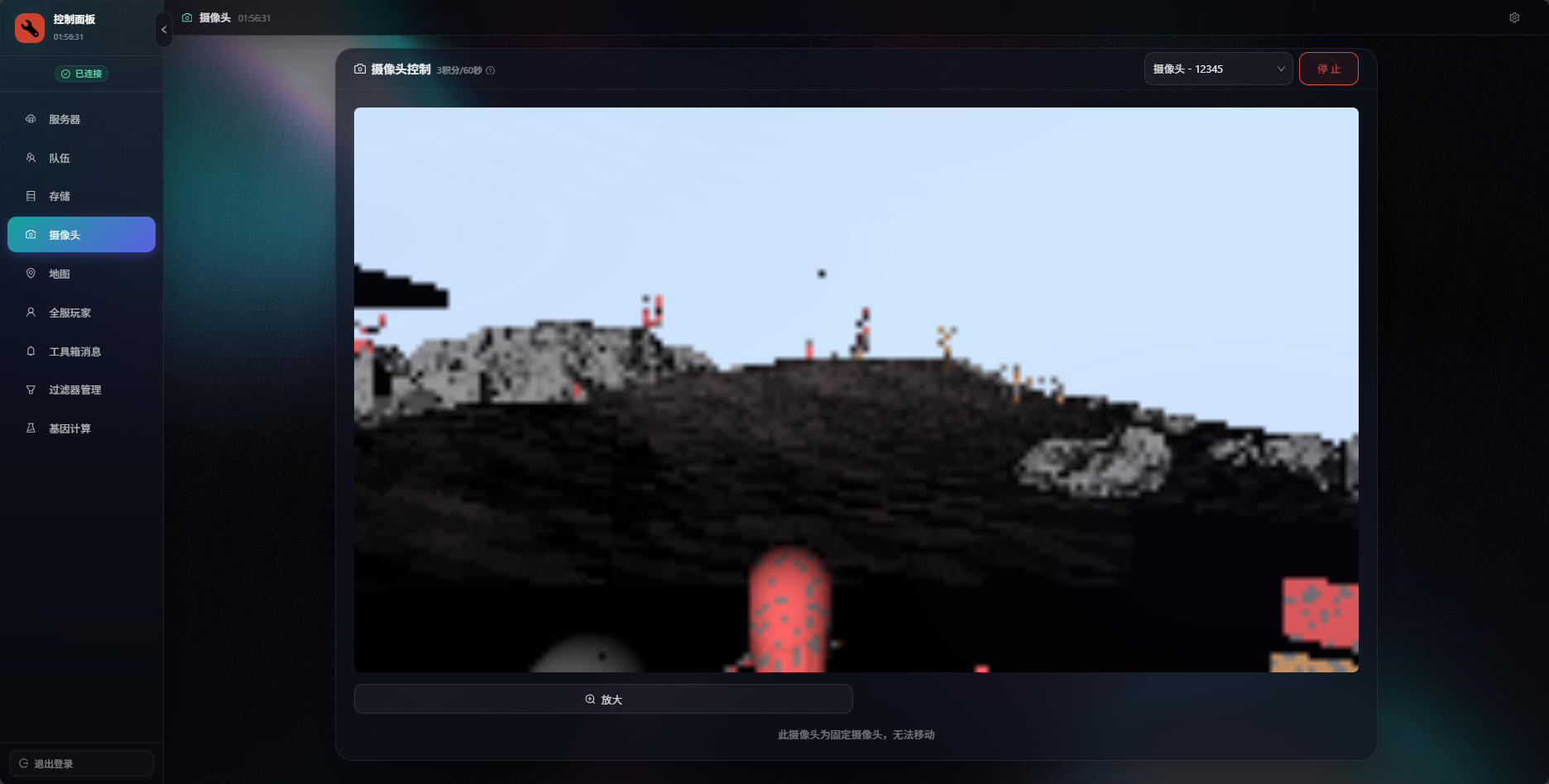
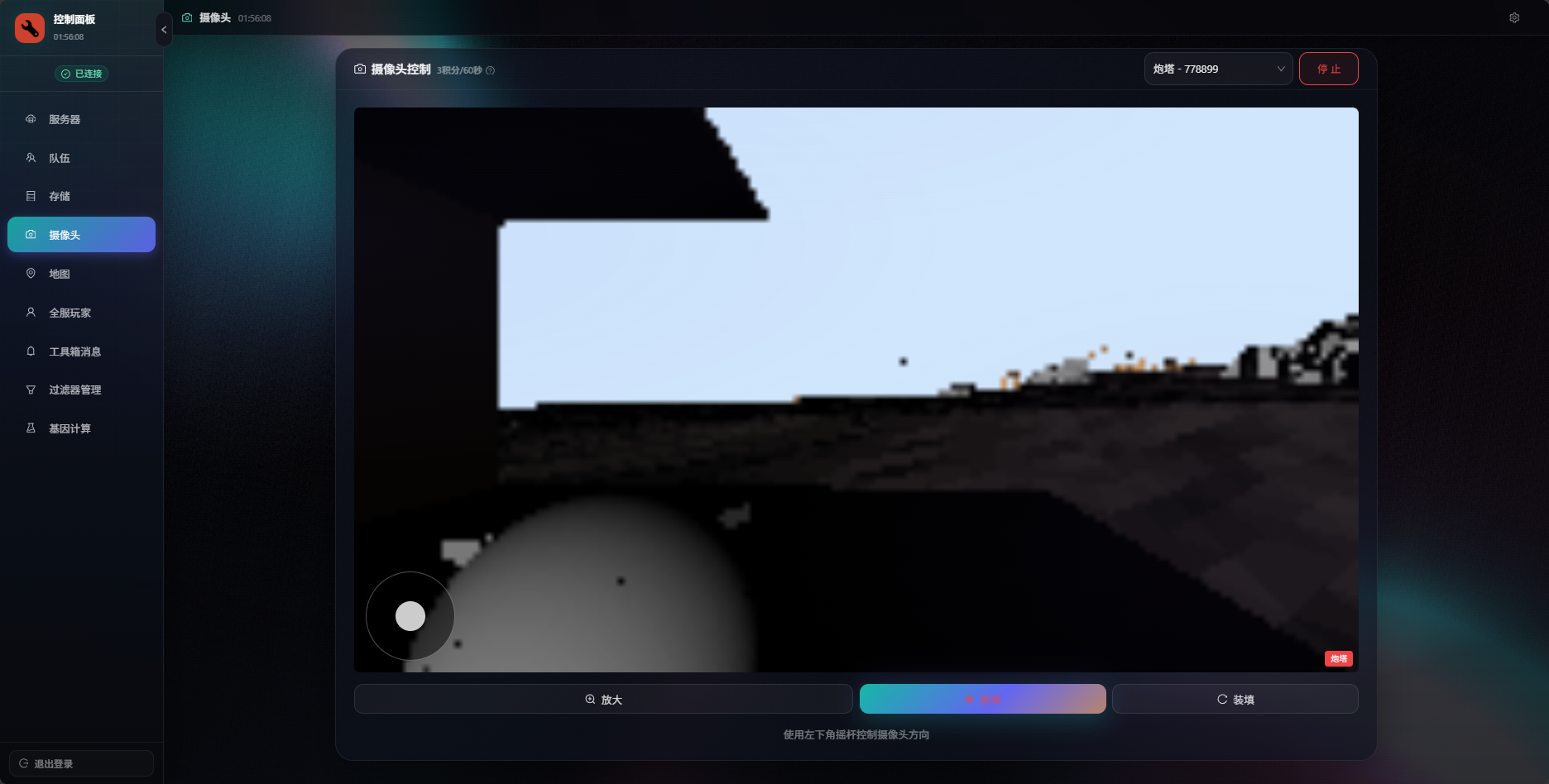
Go to the user page, click the camera feature, choose a camera from the top-right selector, and click view. You can then watch remotely, fire supported devices, and rotate controllable cameras.
Camera Event Logic
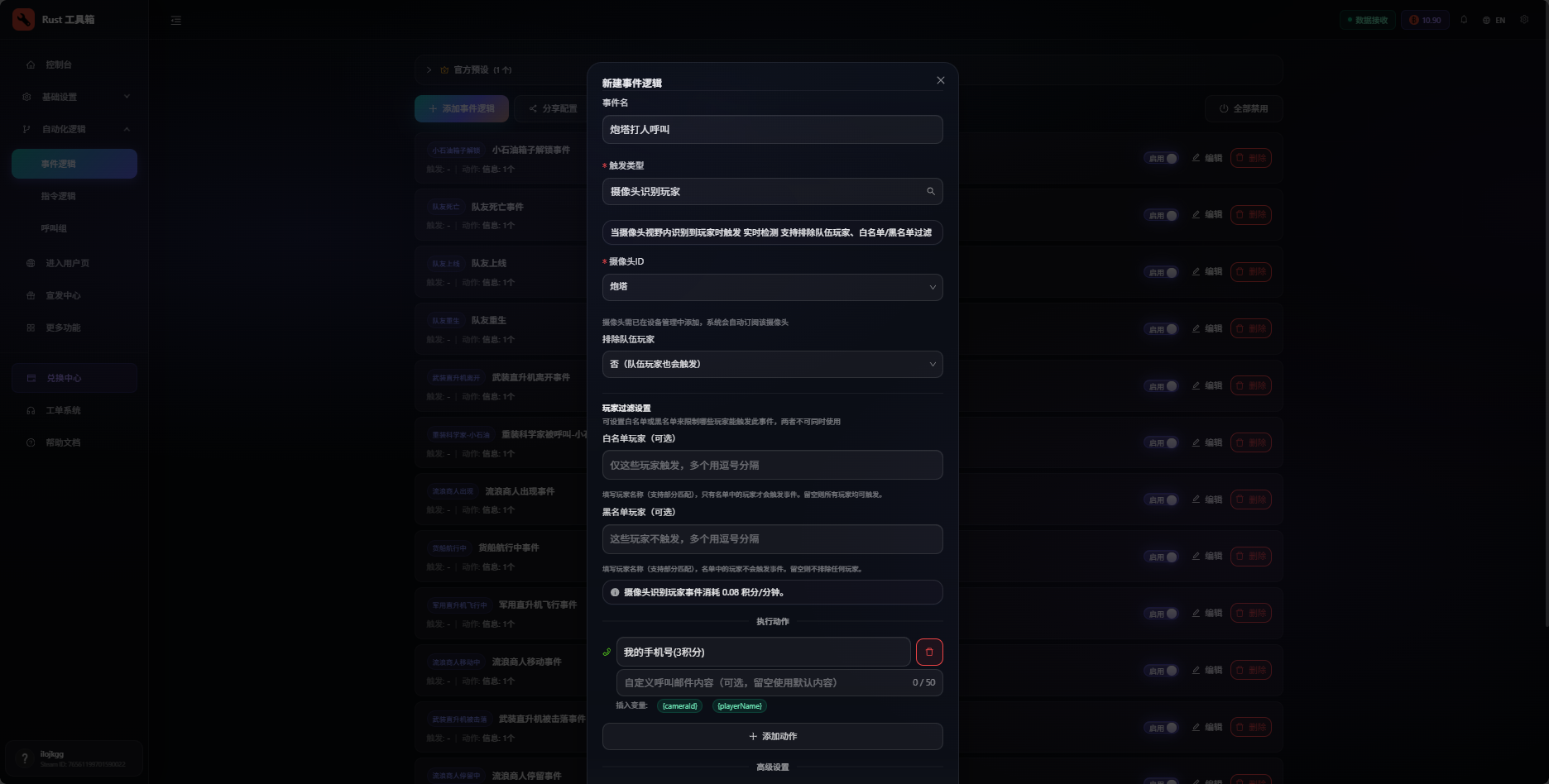
Go to Event Logic and click Add Event to configure automation rules for your cameras.